With Portkey, you can take advantage of features like fast AI gateway access, observability, prompt management, and more, all while ensuring the secure management of your LLM API keys through a virtual key system.
Provider Slug. azure-openai
Portkey SDK Integration with Azure OpenAI
Portkey provides a consistent API to interact with models from various providers. To integrate Azure OpenAI with Portkey:
First, add your Azure details to Portkey’s Virtual Keys
Here’s a step-by-step guide:
- Request access to Azure OpenAI here.
- Create a resource in the Azure portal here. (This will be your Resource Name)
- Deploy a model in Azure OpenAI Studio here. (This will be your Deployment Name)
- Select your
Foundation Model from the dropdowon on the modal.
- Now, on Azure OpenAI studio, go to any playground (chat or completions), click on a UI element called “View code”. Note down the API version & API key from here. (This will be your Azure API Version & Azure API Key)
When you input these details, the foundation model will be auto populated. More details in this guide.
If you do not want to add your Azure details to Portkey, you can also directly pass them while instantiating the Portkey client. More on that here. 1. Install the Portkey SDK
Add the Portkey SDK to your application to interact with Azure OpenAI’s API through Portkey’s gateway.
npm install --save portkey-ai
2. Initialize Portkey with the Virtual Key
Set up Portkey with your virtual key as part of the initialization configuration. You can create a virtual key for Azure in the Portkey UI.
import Portkey from 'portkey-ai'

const portkey = new Portkey({
    apiKey: "PORTKEY_API_KEY", // defaults to process.env["PORTKEY_API_KEY"]
    virtualKey: "AZURE_VIRTUAL_KEY" // Your Azure Virtual Key
})
from portkey_ai import Portkey

portkey = Portkey(
    api_key="PORTKEY_API_KEY",  # Replace with your Portkey API key
    virtual_key="AZURE_VIRTUAL_KEY"   # Replace with your virtual key for Azure
)
3. Invoke Chat Completions with Azure OpenAI
Use the Portkey instance to send requests to your Azure deployments. You can also override the virtual key directly in the API call if needed.
const chatCompletion = await portkey.chat.completions.create({
    messages: [{ role: 'user', content: 'Say this is a test' }],
    model: 'gpt4', // This would be your deployment or model name
});

console.log(chatCompletion.choices);
completion = portkey.chat.completions.create(
    messages= [{ "role": 'user', "content": 'Say this is a test' }],
    model= 'custom_model_name'
)

print(completion.choices)
Managing Azure OpenAI Prompts
You can manage all prompts to Azure OpenAI in the Prompt Library. All the current models of OpenAI are supported and you can easily start testing different prompts.
Once you’re ready with your prompt, you can use the portkey.prompts.completions.create interface to use the prompt in your application.
Image Generation
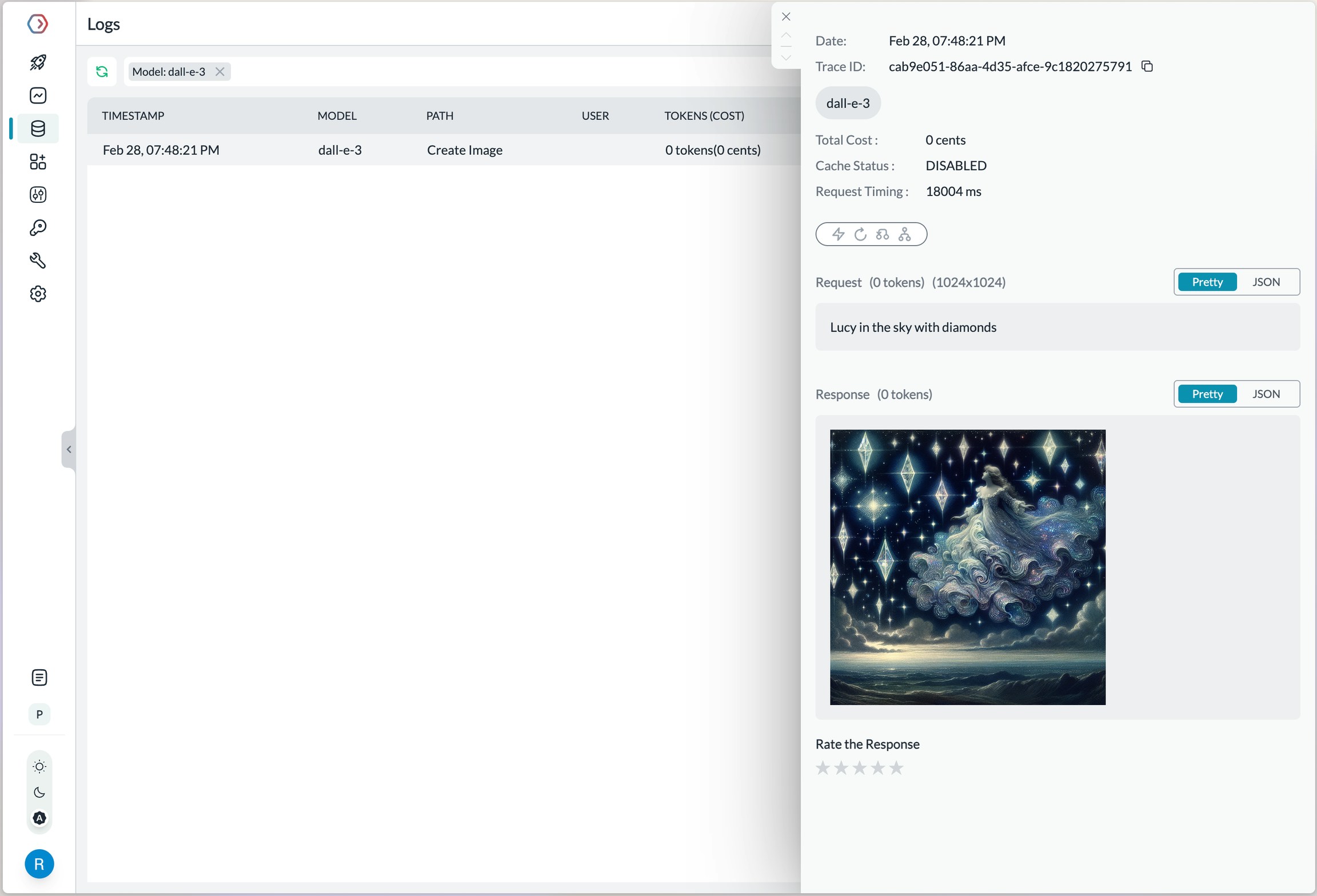
Portkey supports multiple modalities for Azure OpenAI and you can make image generation requests through Portkey’s AI Gateway the same way as making completion calls.
Portkey NodeJS
Portkey Python
import Portkey from 'portkey-ai'

const portkey = new Portkey({
    apiKey: "PORTKEY_API_KEY",
    virtualKey: "DALL-E_VIRTUAL_KEY" // Referencing a Dall-E Azure deployment with Virtual Key
})

const image = await portkey.images.generate({
  prompt:"Lucy in the sky with diamonds",
  size:"1024x1024"
})
from portkey_ai import Portkey

portkey = Portkey(
    api_key="PORTKEY_API_KEY",
    virtual_key="DALL-E_VIRTUAL_KEY"   # Referencing a Dall-E Azure deployment with Virtual Key
)

image = portkey.images.generate(
  prompt="Lucy in the sky with diamonds",
  size="1024x1024"
)
Making Requests Without Virtual Keys
Here’s how you can pass your Azure OpenAI details & secrets directly without using the Virtual Keys feature.
Key Mapping
In a typical Azure OpenAI request,
curl https://{YOUR_RESOURCE_NAME}.openai.azure.com/openai/deployments/{YOUR_DEPLOYMENT_NAME}/chat/completions?api-version={API_VERSION} \
  -H "Content-Type: application/json" \
  -H "api-key: {YOUR_API_KEY}" \
  -d '{
    "model": "gpt-4o",
    "messages": [
      {
        "role": "system",
        "content": "You are a helpful assistant"
      },
      {
        "role": "user",
        "content": "what is a portkey?"
      }
    ]
}'
| Parameter | Node SDK | Python SDK | REST Headers |
|---|
| AZURE RESOURCE NAME | azureResourceName | azure_resource_name | x-portkey-azure-resource-name |
| AZURE DEPLOYMENT NAME | azureDeploymentId | azure_deployment_id | x-portkey-azure-deployment-id |
| API VERSION | azureApiVersion | azure_api_version | x-portkey-azure-api-version |
| AZURE API KEY | Authorization: “Bearer + “ | Authorization = “Bearer + “ | Authorization |
| AZURE MODEL NAME | azureModelName | azure_model_name | x-portkey-azure-model-name |
Example
import Portkey from 'portkey-ai'

const portkey = new Portkey({
    apiKey: "PORTKEY_API_KEY",
    provider: "azure-openai",
    azureResourceName: "AZURE_RESOURCE_NAME",
    azureDeploymentId: "AZURE_DEPLOYMENT_NAME",
    azureApiVersion: "AZURE_API_VERSION",
    azureModelName: "AZURE_MODEL_NAME"
    Authorization: "Bearer API_KEY"
})
from portkey_ai import Portkey

portkey = Portkey(
    api_key = "PORTKEY_API_KEY",
    provider = "azure-openai",
    azure_resource_name = "AZURE_RESOURCE_NAME",
    azure_deployment_id = "AZURE_DEPLOYMENT_NAME",
    azure_api_version = "AZURE_API_VERSION",
    azure_model_name = "AZURE_MODEL_NAME",
    Authorization = "Bearer API_KEY"
)
curl https://api.portkey.ai/v1/chat/completions \
  -H "Content-Type: application/json" \
  -H "Authorization: Bearer $AZURE_OPENAI_API_KEY" \
  -H "x-portkey-api-key: $PORTKEY_API_KEY" \
  -H "x-portkey-provider: azure-openai" \
  -H "x-portkey-azure-resource-name: $AZURE_RESOURCE_NAME" \
  -H "x-portkey-azure-deployment-id: $AZURE_DEPLOYMENY_ID" \
  -H "x-portkey-azure-model-name: $AZURE_MODEL_NAME" \
  -H "x-portkey-azure-api-version: $AZURE_API_VERSION" \
  -d '{
    "model": "gpt-4o",
    "messages": [{"role": "user","content": "Hello!"}]
  }'
How to Pass JWT (JSON Web Tokens)
If you have configured fine-grained access for Azure OpenAI and need to use JSON web token (JWT) in the Authorization header instead of the regular API Key, you can use the forwardHeaders parameter to do this.
import Portkey from 'portkey-ai'

const portkey = new Portkey({
    apiKey: "PORTKEY_API_KEY",
    provider: "azure-openai",
    azureResourceName: "AZURE_RESOURCE_NAME",
    azureDeploymendId: "AZURE_DEPLOYMENT_NAME",
    azureApiVersion: "AZURE_API_VERSION",
    azureModelName: "AZURE_MODEL_NAME",
    Authorization: "Bearer JWT_KEY", // Pass your JWT here
    forwardHeaders: [ "Authorization" ]
})
import Portkey from 'portkey-ai'

const portkey = new Portkey({
    api_key = "PORTKEY_API_KEY",
    provider = "azure-openai",
    azure_resource_name = "AZURE_RESOURCE_NAME",
    azure_deploymend_id = "AZURE_DEPLOYMENT_NAME",
    azure_api_version = "AZURE_API_VERSION",
    azure_model_name = "AZURE_MODEL_NAME",
    Authorization = "Bearer API_KEY", # Pass your JWT here
    forward_headers= [ "Authorization" ]
)
Next Steps
The complete list of features supported in the SDK are available on the link below.
You’ll find more information in the relevant sections:
- Add metadata to your requests
- Add gateway configs to your Azure OpenAI requests
- Tracing Azure OpenAI requests
- Setup a fallback from OpenAI to Azure OpenAI APIs